
Step 1: Open RTO Suite
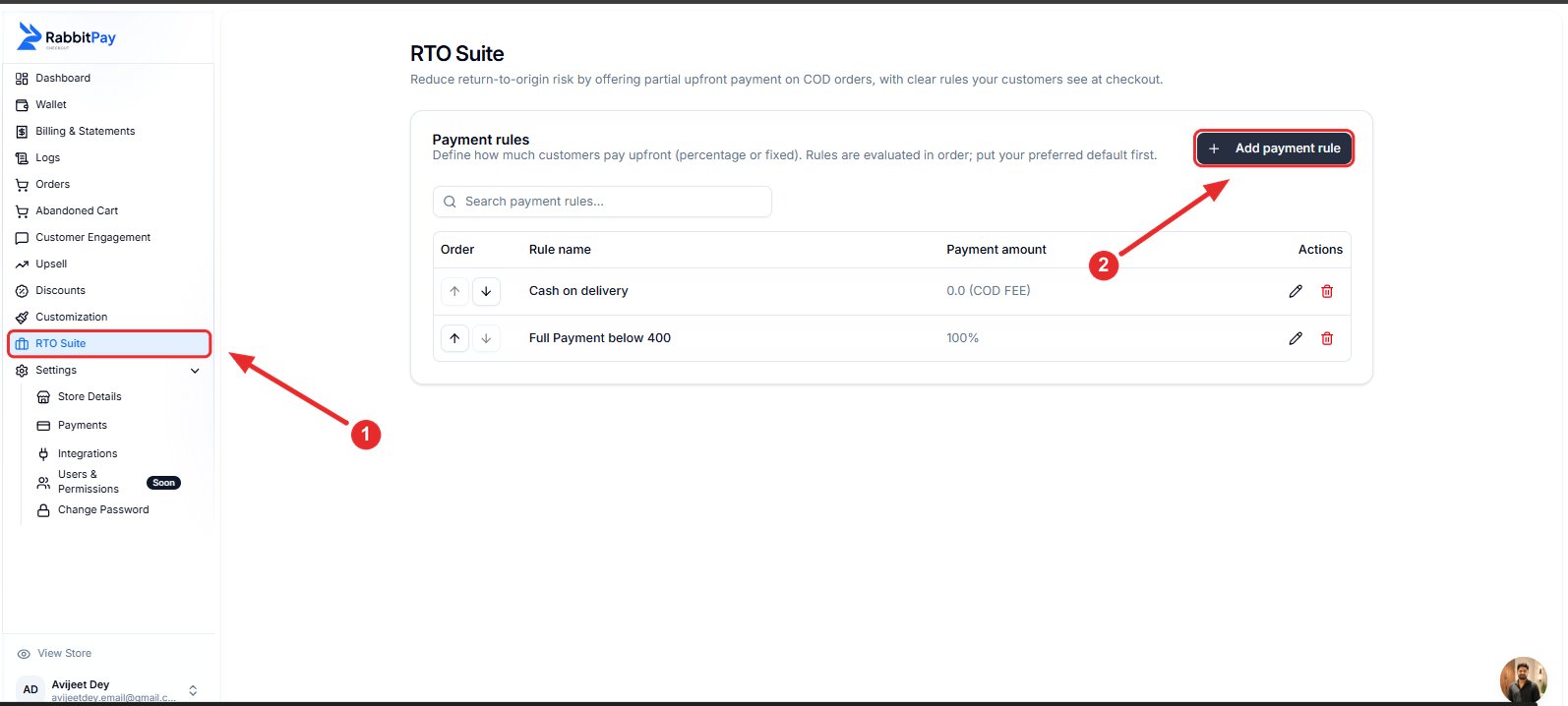
- Log in to your RabbitPay Dashboard.
- Navigate to RTO Suite.
- Click Add payment rule or edit an existing payment rule.
Step 2: Configure the Payment Rule
Configure the payment rule based on your requirement.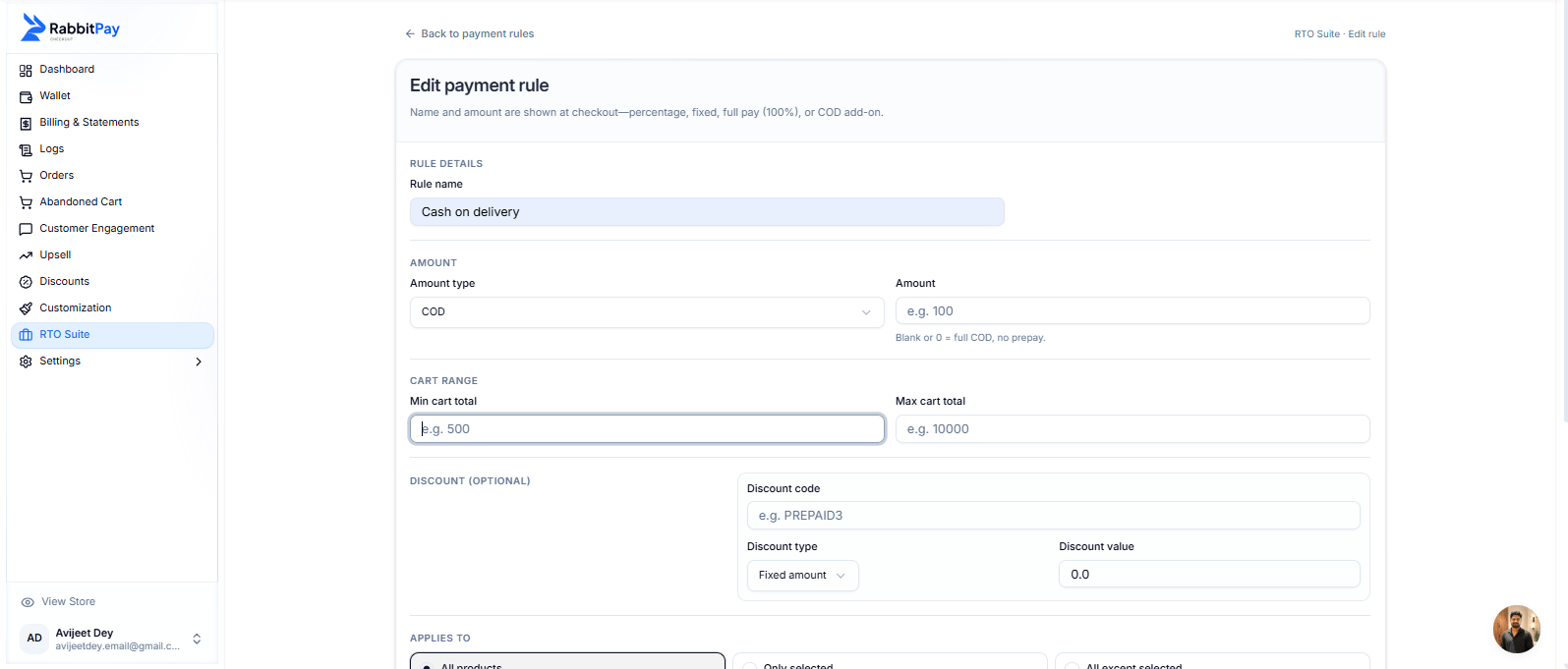
Note: In this guide, Cash on Delivery (COD) is used as an example. Zipcode Restrictions work with any payment rule.
Step 3: Enable Zipcode Restrictions
Scroll down to the Zipcode Restrictions section.- Enable Zipcode Restrictions.
- Enter the zipcodes where you want this payment rule to be restricted.
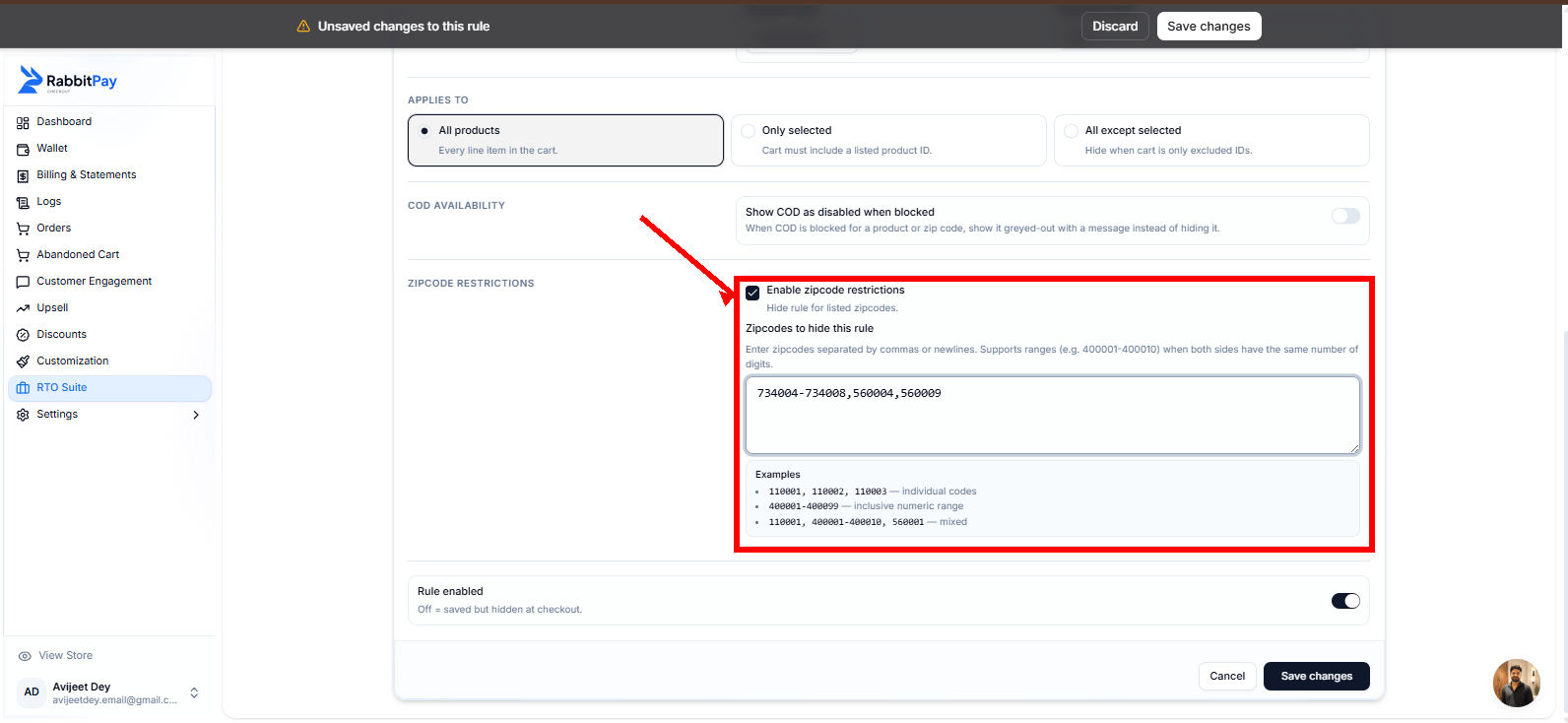
Tip: You can highlight the entire Zipcode Restrictions section with a red border and use a red arrow pointing to Enable Zipcode Restrictions.
Step 4: Add Zipcodes
You can enter individual zipcodes, zipcode ranges, or a combination of both.Separate multiple zipcodes using commas or new lines. Zipcode ranges are also supported.
Step 5: Save the Rule
- Enable Rule Enabled.
- Click Save Changes.
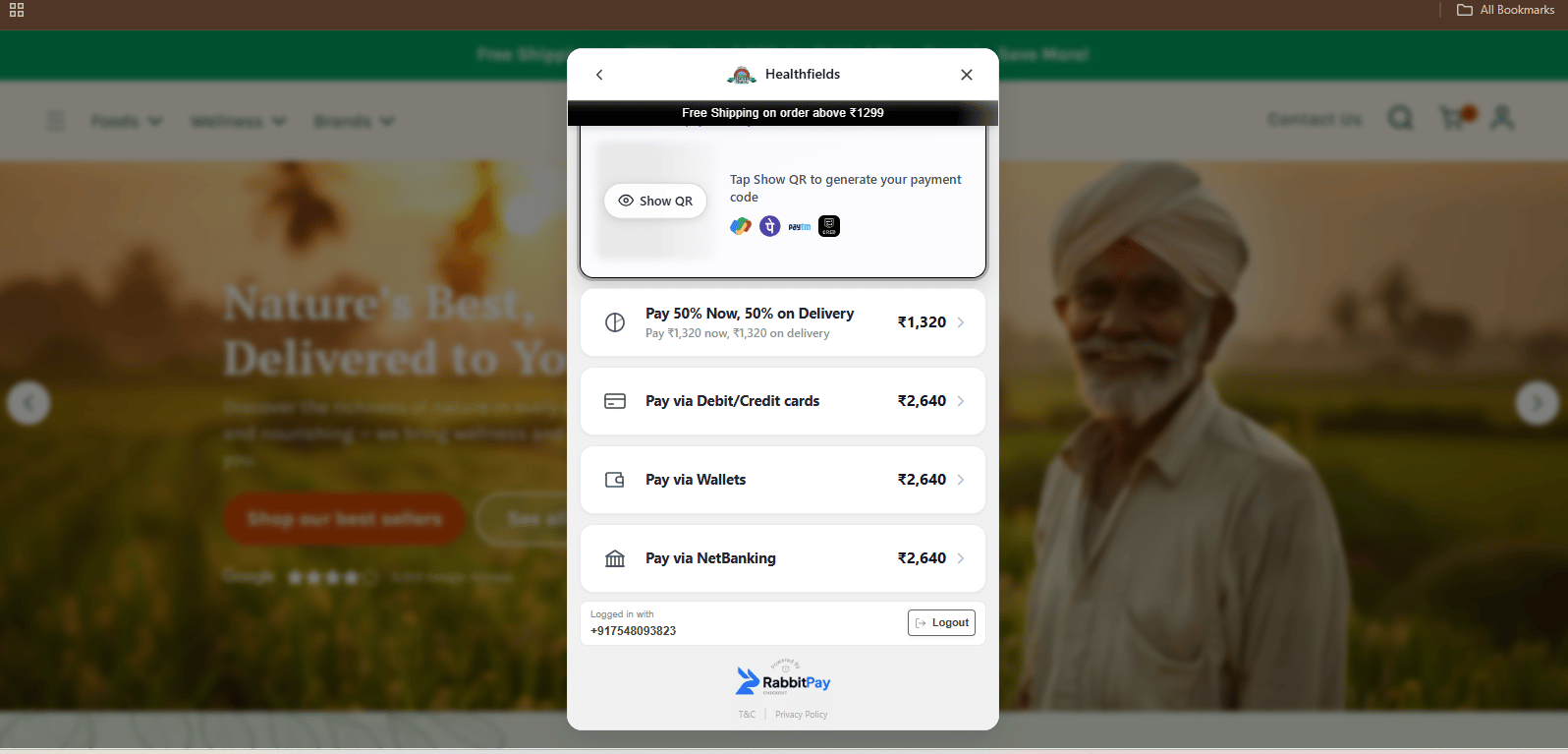
Checkout Preview
Customers whose delivery zipcode matches the configured restrictions will not see the configured payment rule during checkout.