
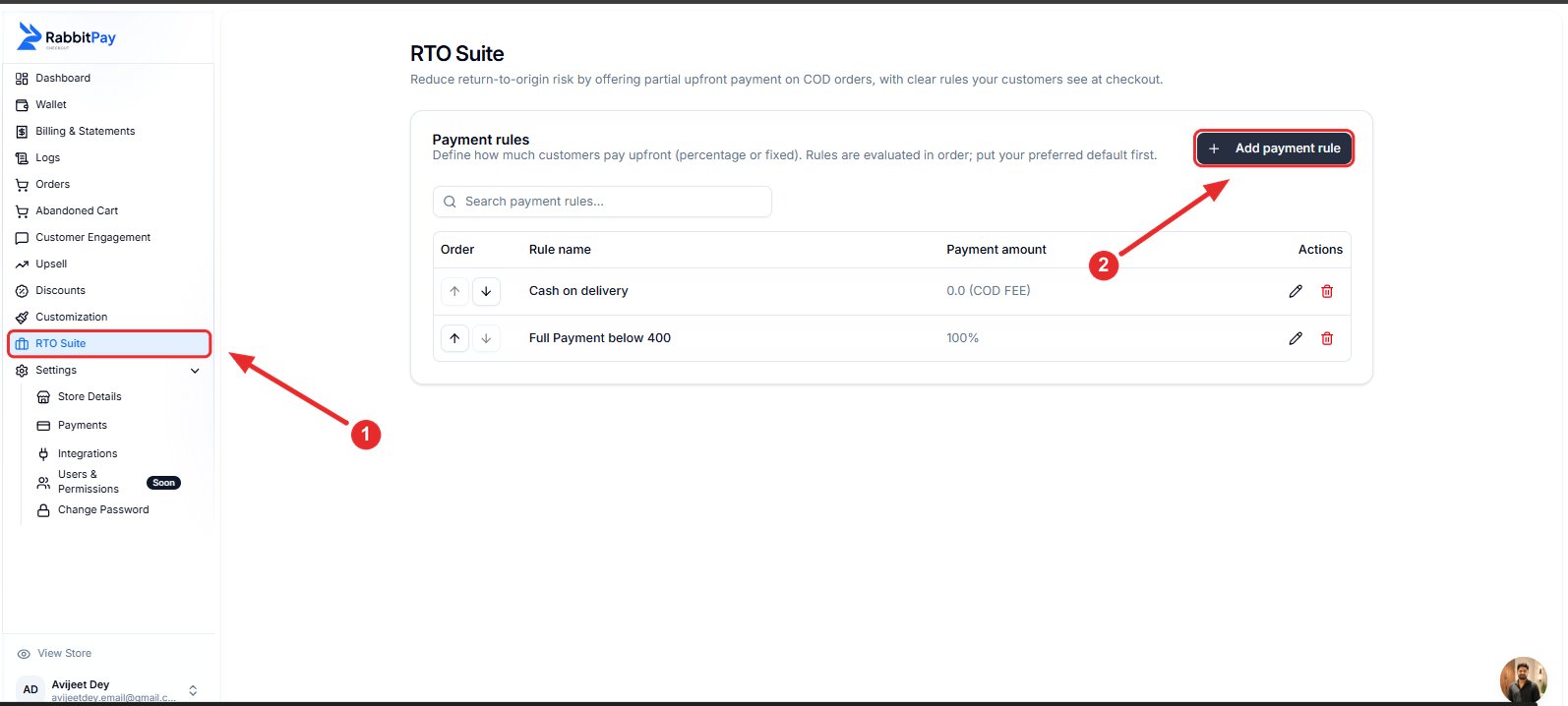
Step 1: Open RTO Suite
- Log in to your RabbitPay Dashboard.
- Navigate to RTO Suite.
- Click Add payment rule.
Step 2: Configure the Rule
Fill in the required details.Example 1: Percentage
Select Percentage if you want customers to pay a percentage of the total order value upfront.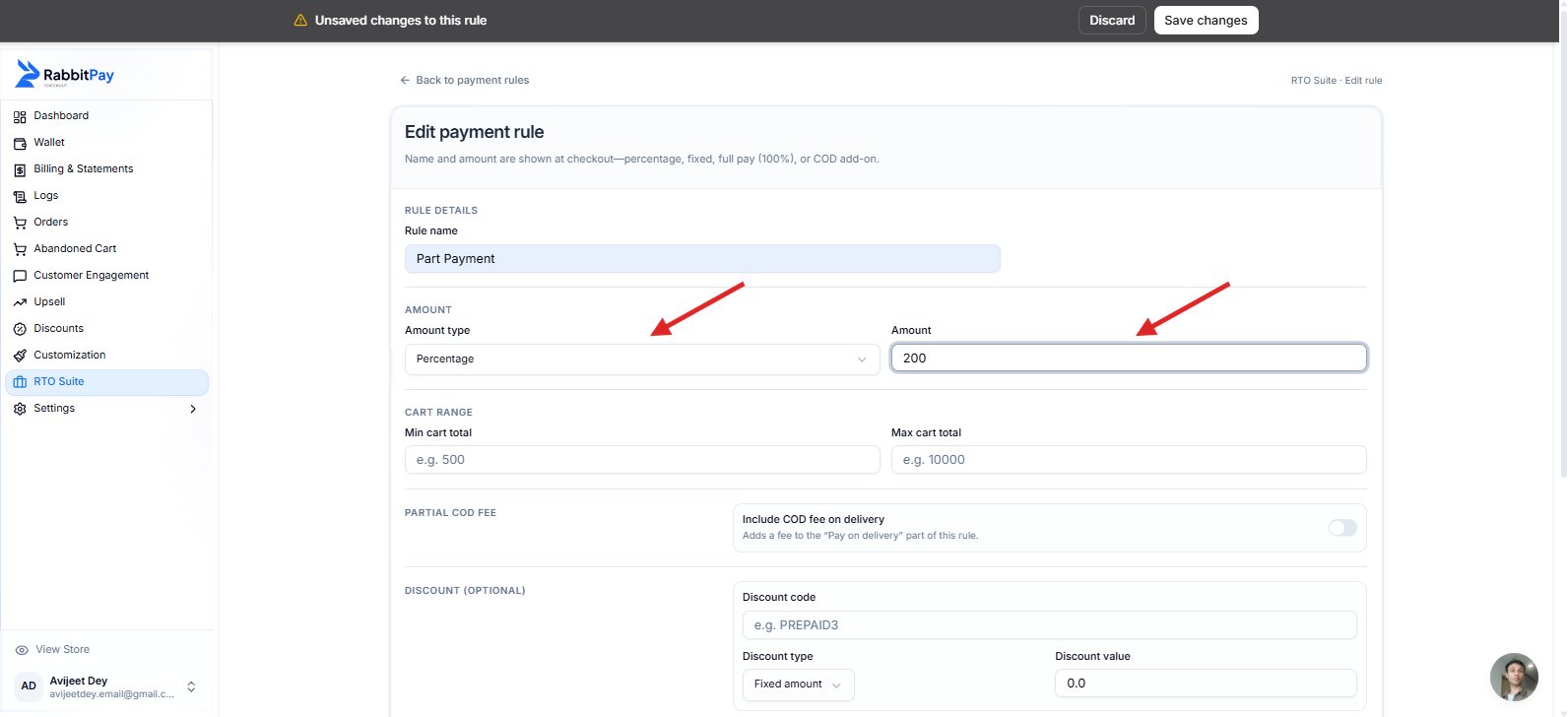
Use a customer-friendly rule name, as it will be displayed to customers during checkout.
Example 2: Fixed Amount
Select Fixed Amount if you want to collect the same upfront payment for every eligible order, regardless of the order value. For example, entering ₹200 means every eligible customer will pay ₹200 upfront, and the remaining balance will be collected on delivery.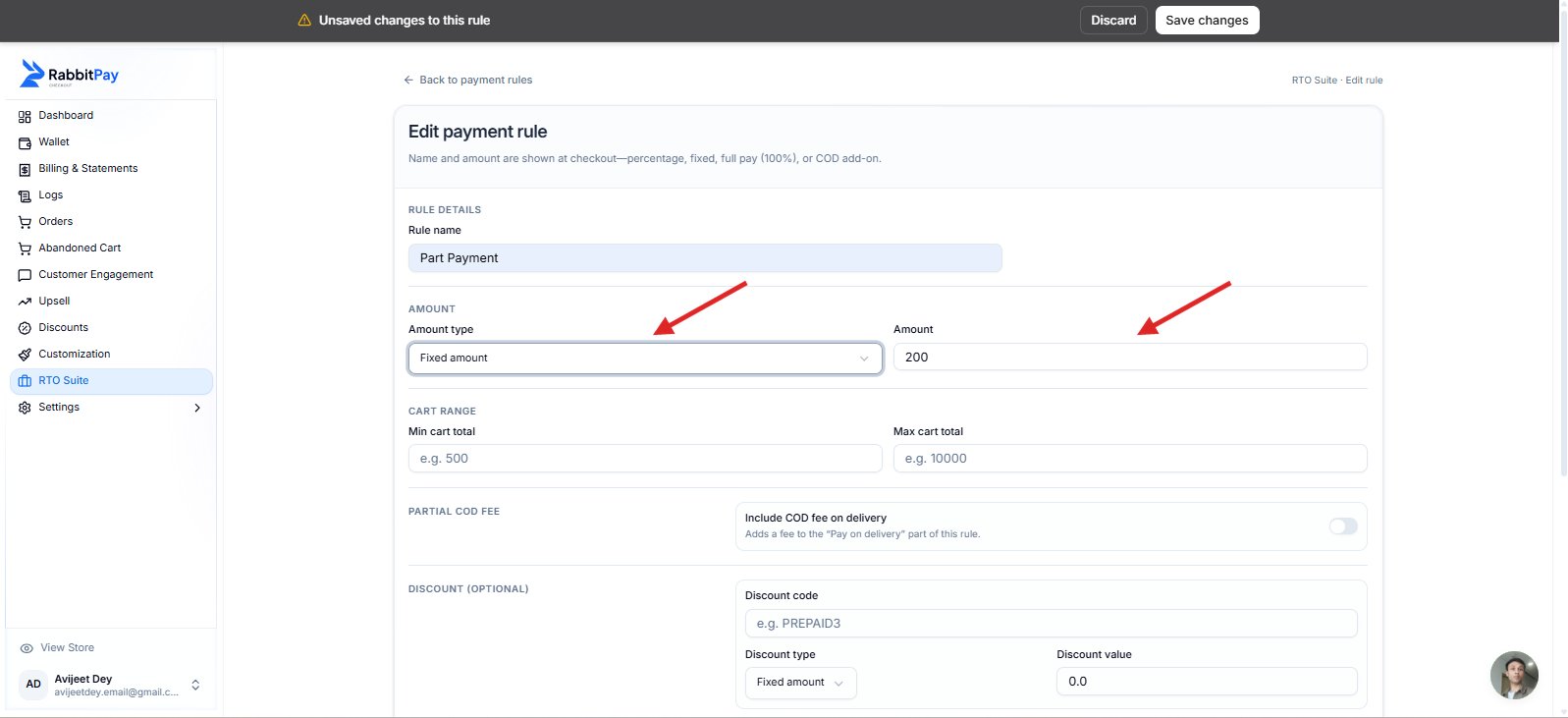
Step 3: Configure Optional Settings
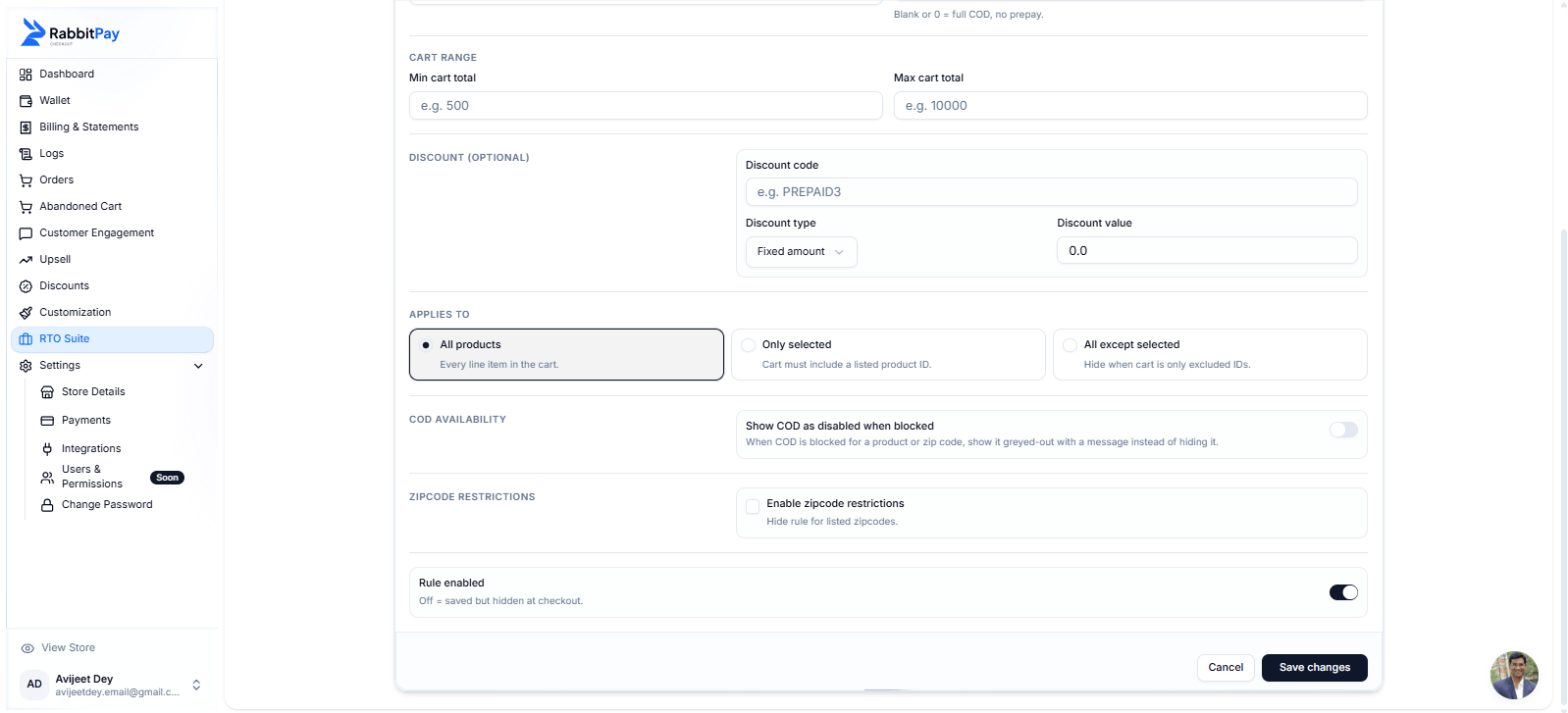
Configure the following settings as needed:- Cart Range – Apply the rule only to selected order values.
- Partial COD Fee – Add a COD fee to the remaining amount payable on delivery.
- Discount – Apply a Shopify discount code to this payment rule.
- Applies To – Choose whether the rule applies to all products, selected products, or all except selected.
- Zipcode Restrictions – Restrict the rule to specific delivery zipcodes.
Step 4: Save the Rule
- Enable Rule Enabled.
- Click Save Changes.
Checkout Preview
Customers will see the configured Partial Payment option during checkout.Percentage Example
Customers pay the configured percentage upfront and the remaining amount on delivery.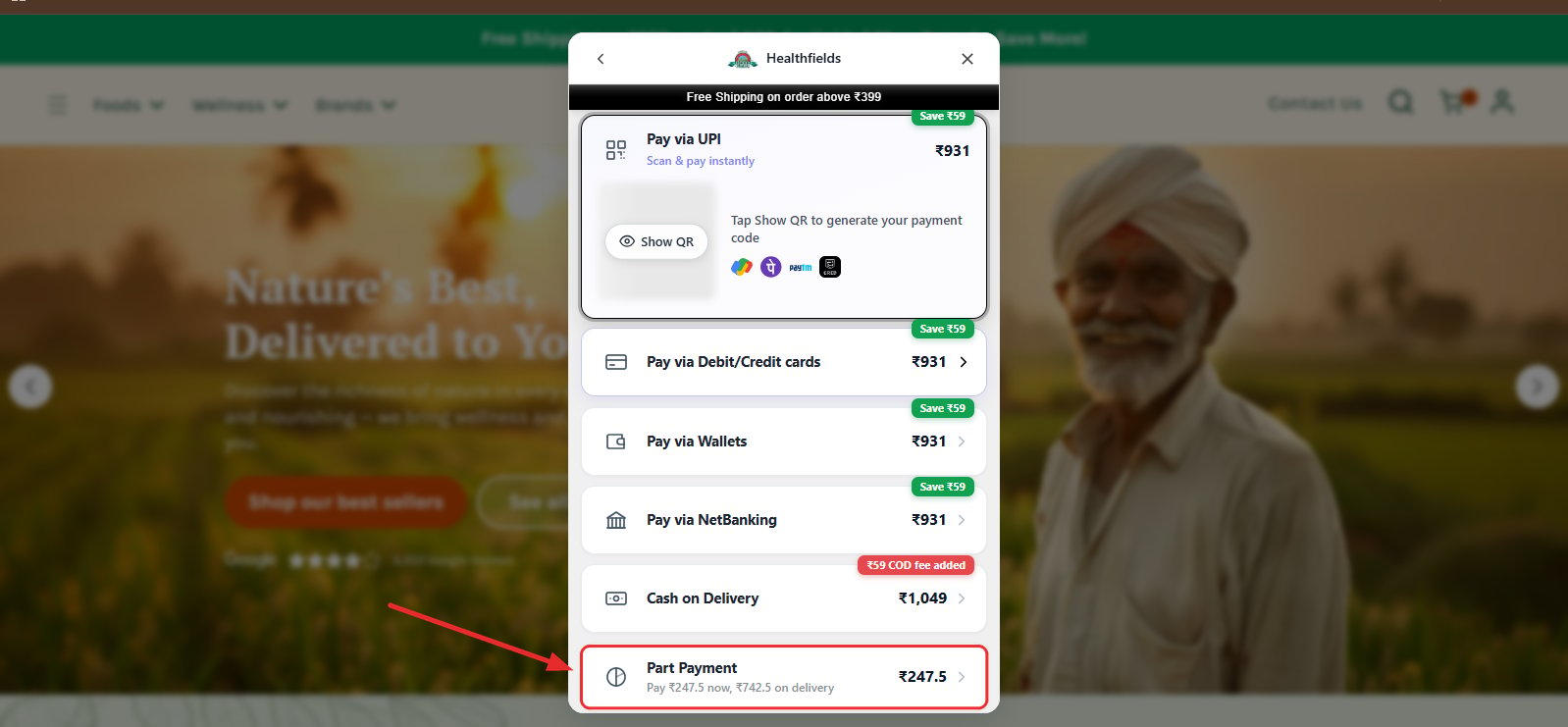
Fixed Amount Example
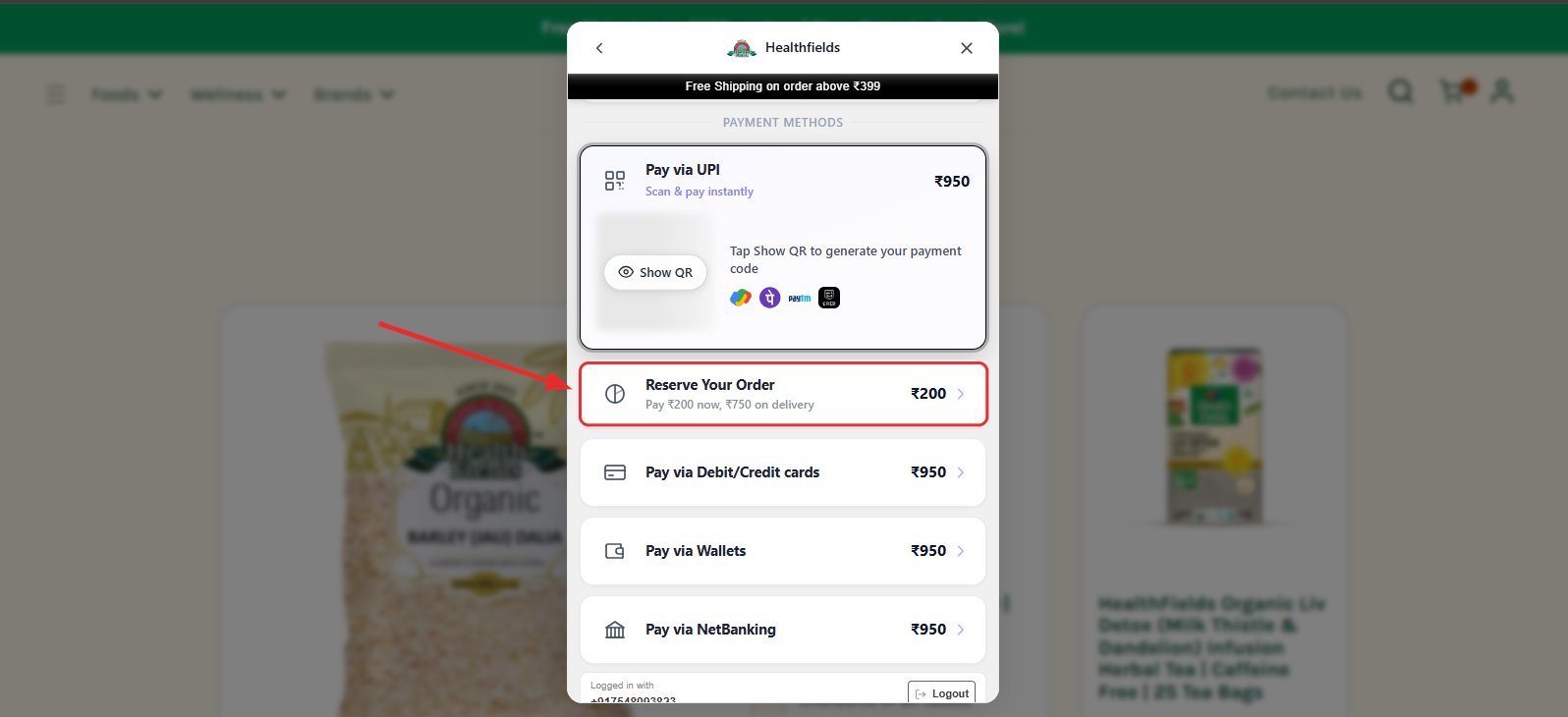
If the rule is configured with a Fixed Amount, customers will see the configured amount displayed during checkout. Example:- Rule Name: Reserve Your Order
- Upfront Payment: ₹200
- Remaining Amount: ₹750 on delivery