> ## Documentation Index
> Fetch the complete documentation index at: https://rabbitpay.ai/documentation/llms.txt
> Use this file to discover all available pages before exploring further.
# How to Set Up Partial Payment
> Configure Partial Payment to collect a fixed amount or percentage of the order value before dispatching a COD order.
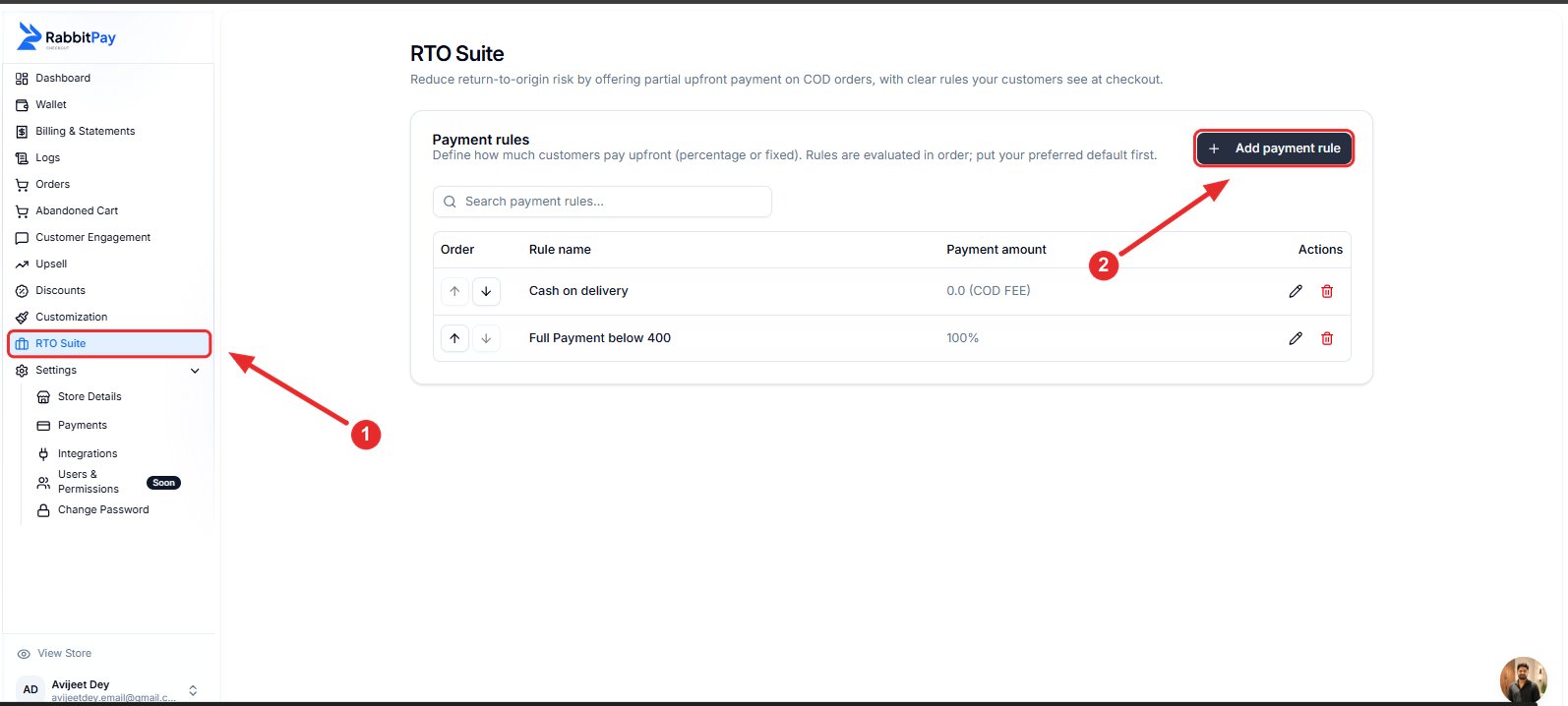
## Step 1: Open RTO Suite
1. Log in to your RabbitPay Dashboard.
2. Navigate to **RTO Suite**.
3. Click **Add payment rule**.
 ***
## Step 2: Configure the Rule
Fill in the required details.
| Field | Value |
| -------------- | ------------------------------------------- |
| Rule Name | **Part Payment** *(Recommended)* |
| Other Examples | Reserve Your Order, Book Now, 25% Advance |
| Amount Type | Percentage or Fixed Amount |
| Amount | Enter the upfront payment amount to collect |
### Example 1: Percentage
Select **Percentage** if you want customers to pay a percentage of the total order value upfront.
***
## Step 2: Configure the Rule
Fill in the required details.
| Field | Value |
| -------------- | ------------------------------------------- |
| Rule Name | **Part Payment** *(Recommended)* |
| Other Examples | Reserve Your Order, Book Now, 25% Advance |
| Amount Type | Percentage or Fixed Amount |
| Amount | Enter the upfront payment amount to collect |
### Example 1: Percentage
Select **Percentage** if you want customers to pay a percentage of the total order value upfront.
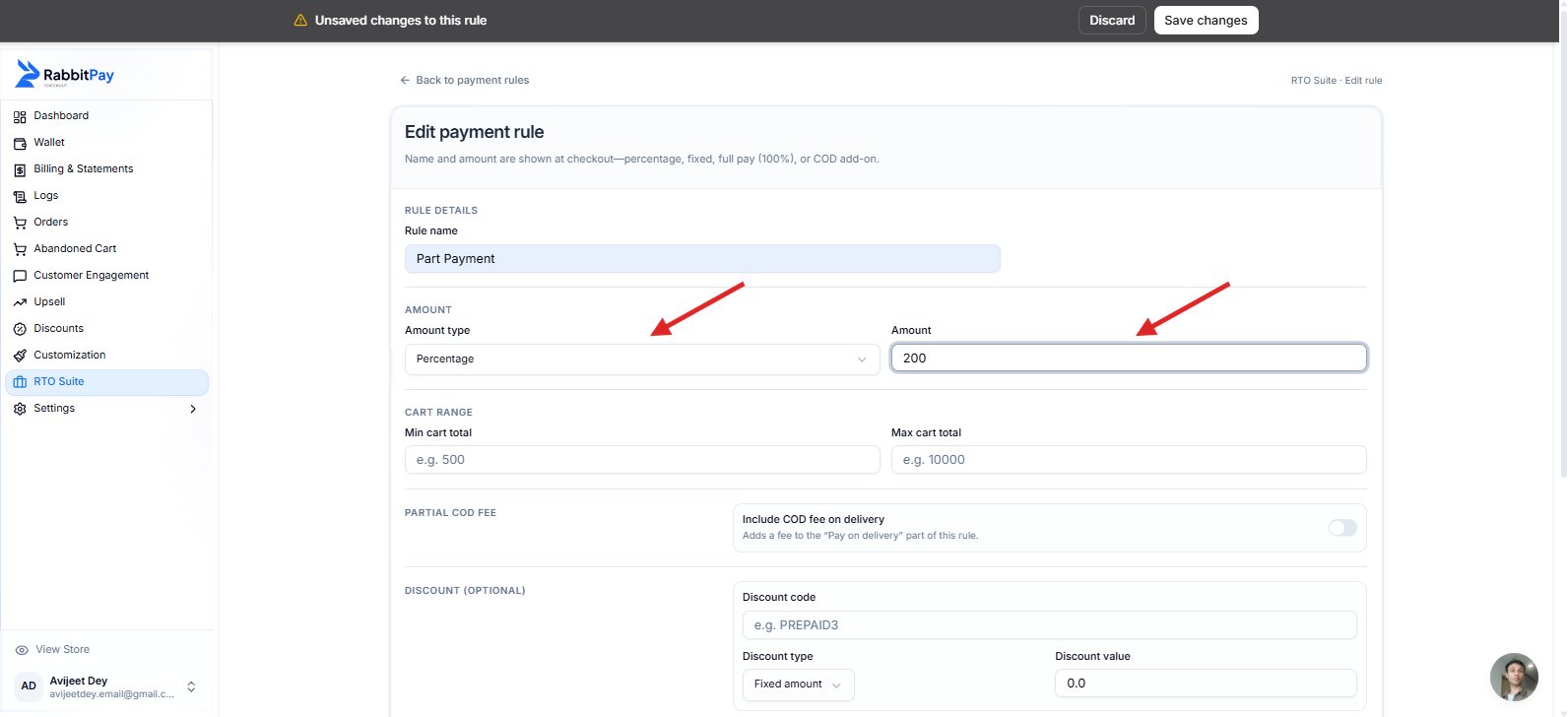 Use a customer-friendly rule name, as it will be displayed to customers during checkout.
### Example 2: Fixed Amount
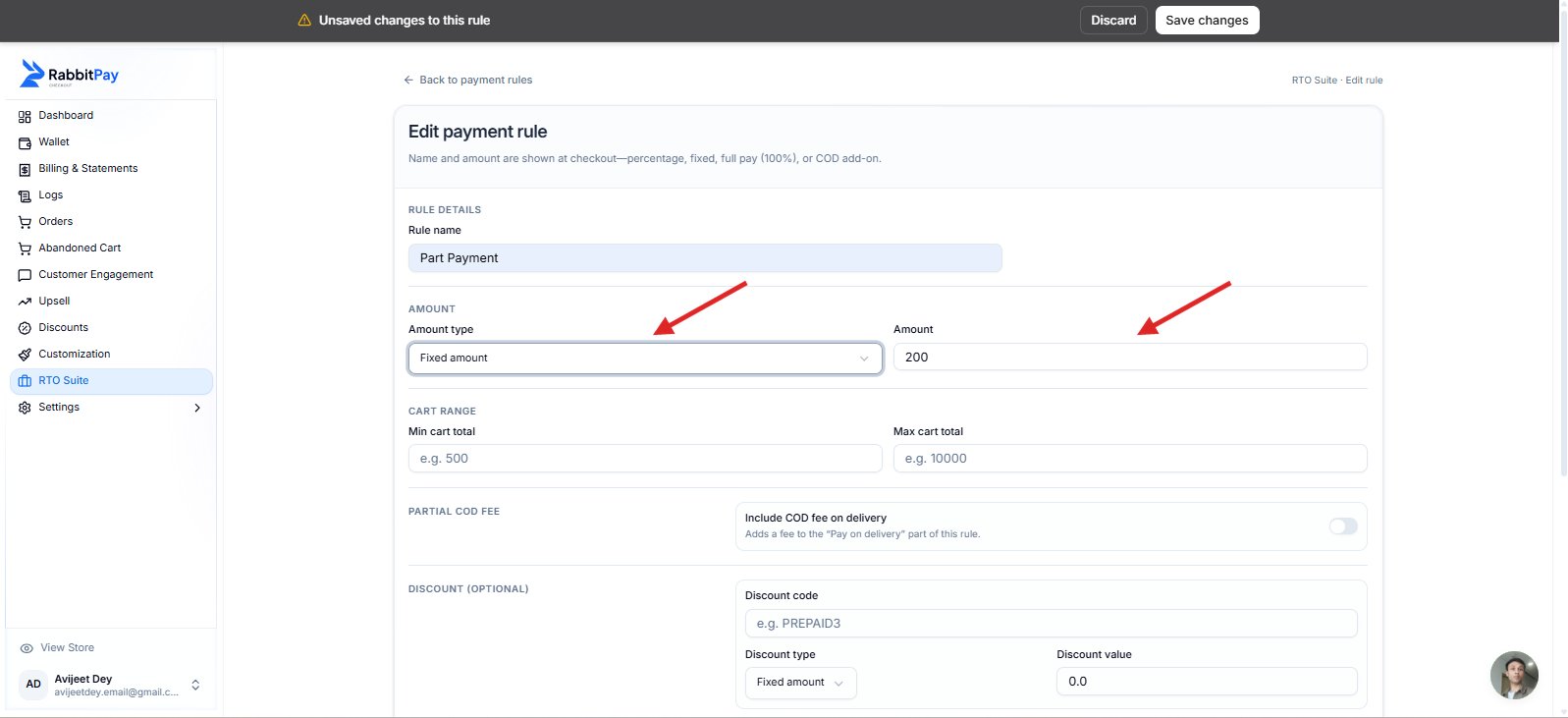
Select **Fixed Amount** if you want to collect the same upfront payment for every eligible order, regardless of the order value.
For example, entering **₹200** means every eligible customer will pay **₹200 upfront**, and the remaining balance will be collected on delivery.
Use a customer-friendly rule name, as it will be displayed to customers during checkout.
### Example 2: Fixed Amount
Select **Fixed Amount** if you want to collect the same upfront payment for every eligible order, regardless of the order value.
For example, entering **₹200** means every eligible customer will pay **₹200 upfront**, and the remaining balance will be collected on delivery.
 ***
## Step 3: Configure Optional Settings
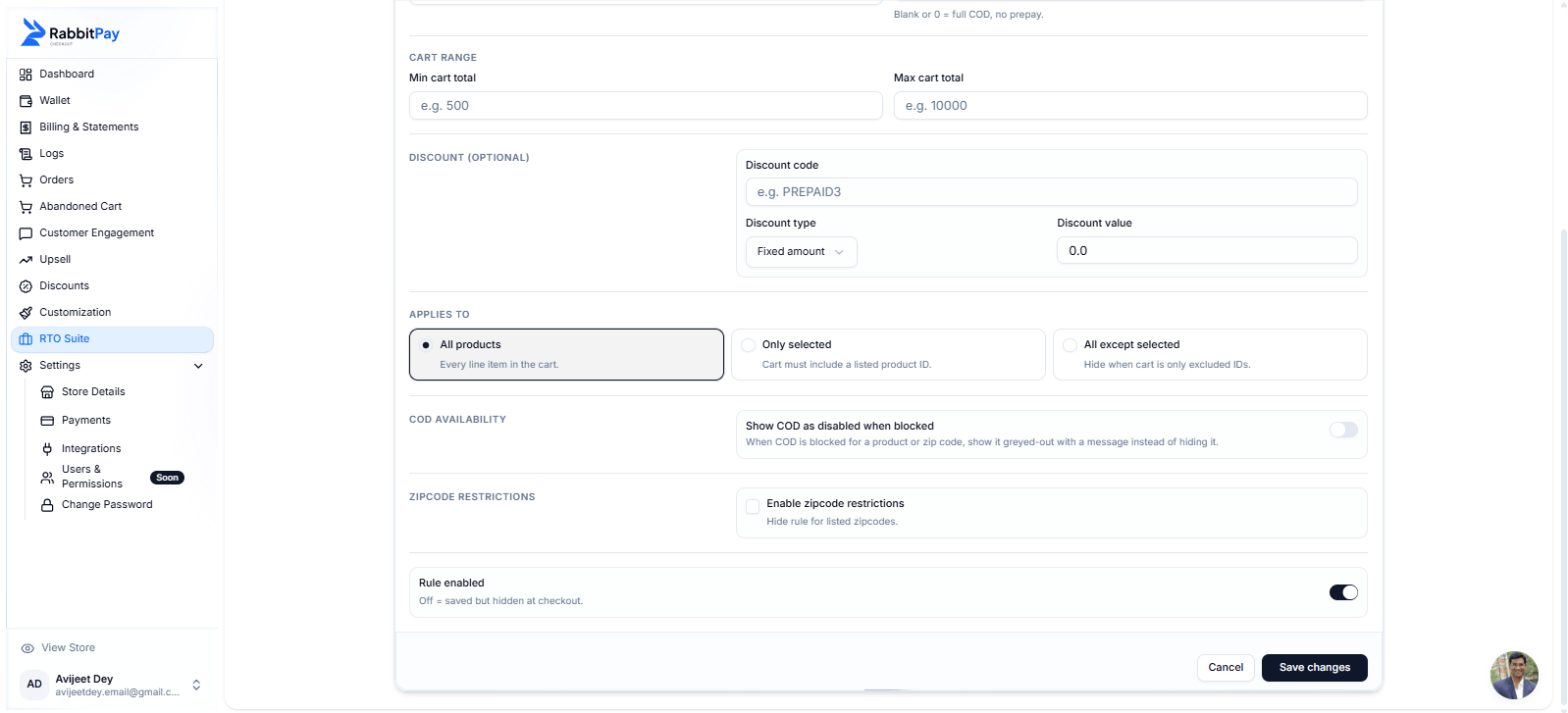
Configure the following settings as needed:
* **Cart Range** – Apply the rule only to selected order values.
* **Partial COD Fee** – Add a COD fee to the remaining amount payable on delivery.
* **Discount** – Apply a Shopify discount code to this payment rule.
* **Applies To** – Choose whether the rule applies to all products, selected products, or all except selected.
* **Zipcode Restrictions** – Restrict the rule to specific delivery zipcodes.
***
## Step 4: Save the Rule
1. Enable **Rule Enabled**.
2. Click **Save Changes**.
***
## Step 3: Configure Optional Settings
Configure the following settings as needed:
* **Cart Range** – Apply the rule only to selected order values.
* **Partial COD Fee** – Add a COD fee to the remaining amount payable on delivery.
* **Discount** – Apply a Shopify discount code to this payment rule.
* **Applies To** – Choose whether the rule applies to all products, selected products, or all except selected.
* **Zipcode Restrictions** – Restrict the rule to specific delivery zipcodes.
***
## Step 4: Save the Rule
1. Enable **Rule Enabled**.
2. Click **Save Changes**.
 ***
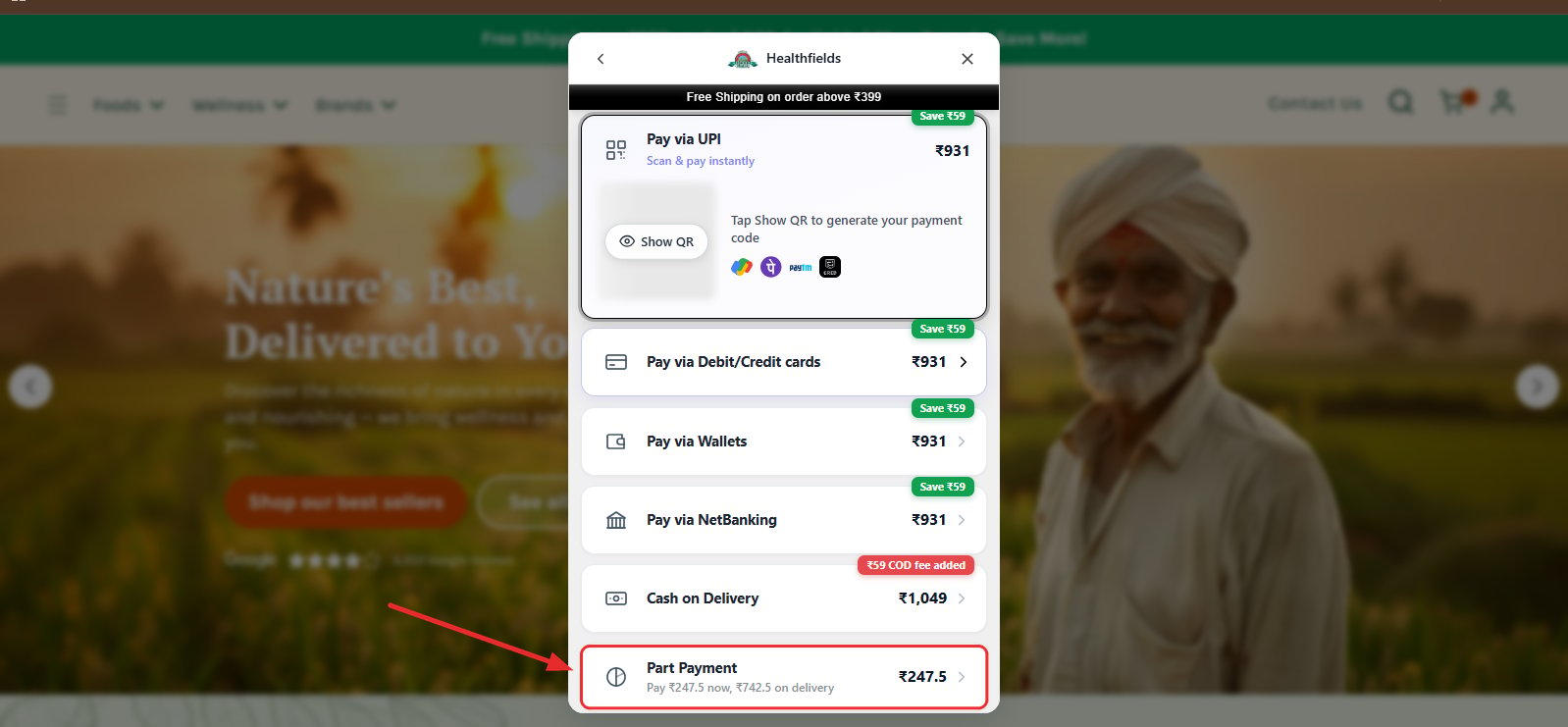
## Checkout Preview
Customers will see the configured Partial Payment option during checkout.
### Percentage Example
Customers pay the configured percentage upfront and the remaining amount on delivery.
***
## Checkout Preview
Customers will see the configured Partial Payment option during checkout.
### Percentage Example
Customers pay the configured percentage upfront and the remaining amount on delivery.
 ### Fixed Amount Example
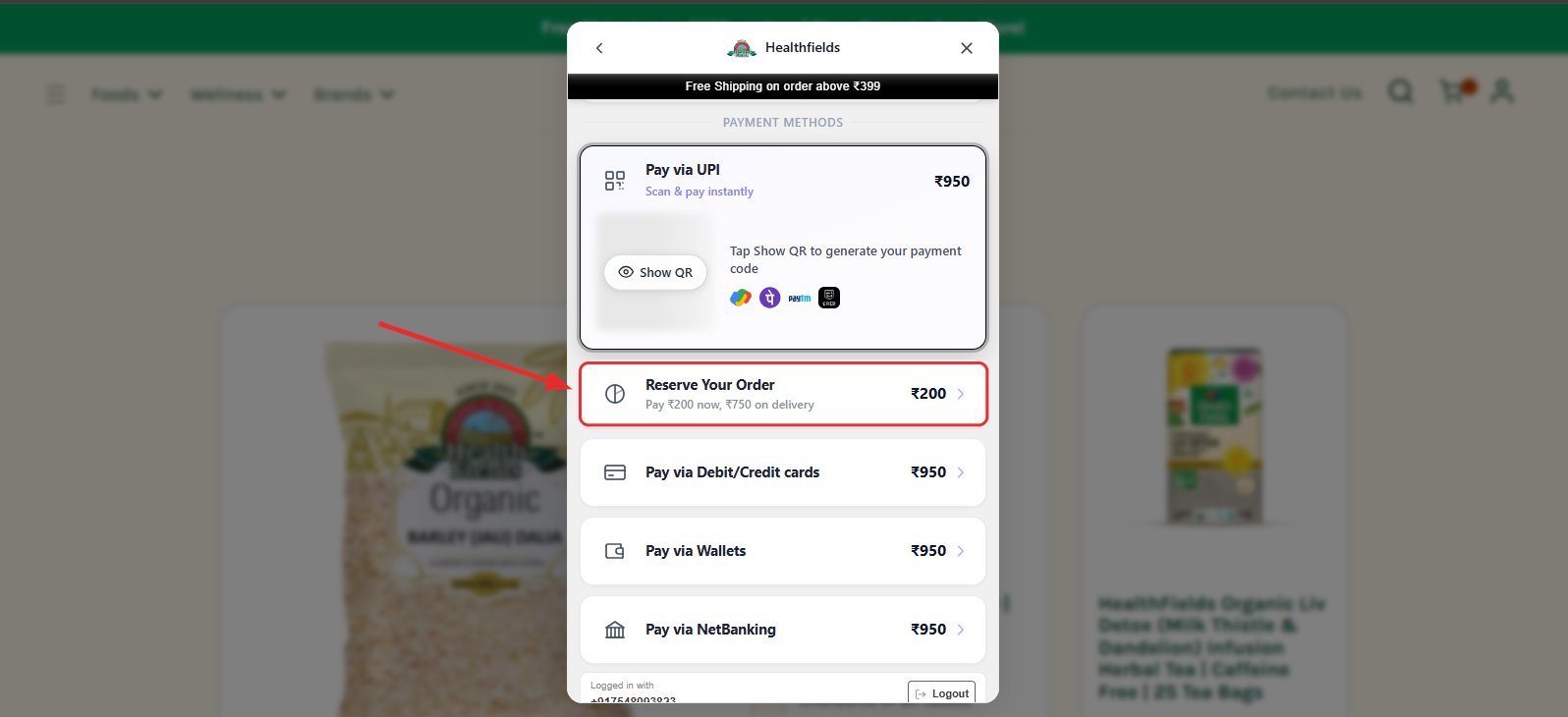
If the rule is configured with a **Fixed Amount**, customers will see the configured amount displayed during checkout.
Example:
* Rule Name: **Reserve Your Order**
* Upfront Payment: **₹200**
* Remaining Amount: **₹750 on delivery**
### Fixed Amount Example
If the rule is configured with a **Fixed Amount**, customers will see the configured amount displayed during checkout.
Example:
* Rule Name: **Reserve Your Order**
* Upfront Payment: **₹200**
* Remaining Amount: **₹750 on delivery**
 ***
## Example Configuration
| Setting | Value |
| ----------- | --------------------------- |
| Rule Name | Part Payment |
| Amount Type | Percentage |
| Amount | 25% |
| Cart Range | ₹500 – ₹10,000 *(Optional)* |
| Applies To | All Products |
***
## Result
Your Partial Payment rule is now active and will be applied to eligible orders based on the conditions you've configured.
***
## Example Configuration
| Setting | Value |
| ----------- | --------------------------- |
| Rule Name | Part Payment |
| Amount Type | Percentage |
| Amount | 25% |
| Cart Range | ₹500 – ₹10,000 *(Optional)* |
| Applies To | All Products |
***
## Result
Your Partial Payment rule is now active and will be applied to eligible orders based on the conditions you've configured.